




Validate a Business Bank Account
Validate a Business Bank Account
After your business bank account is approved, Expensify sends three test transactions to confirm ownership. You’ll also receive a message from Concierge that says “Your bank account is almost set up!”.
The three transactions (two small withdrawals and one small deposit) typically arrive within one–two business days. Once they appear in your bank account, enter the exact amounts in Expensify to complete validation and start using the account for reimbursements or payments.
Who can validate a business bank account
Any member who has a Pending business bank account in Wallet can validate it using the test transactions.
To validate a workspace’s bank account from Workflows, you must be a Workspace Admin or a Payments Admin on that workspace. Members without those permissions should use Account > Wallet instead.
When can a business bank account be validated
After your business bank account is approved:
- Expensify sends three test transactions to your bank account - two small withdrawals and one small deposit.
- When the test transactions are sent, Concierge will send a message to notify you that says “Your bank account is almost set up!”.
- The test transactions will arrive 1-2 days after sending.
How to validate a business bank account with test transactions
When you see the three test amounts post to your bank account:
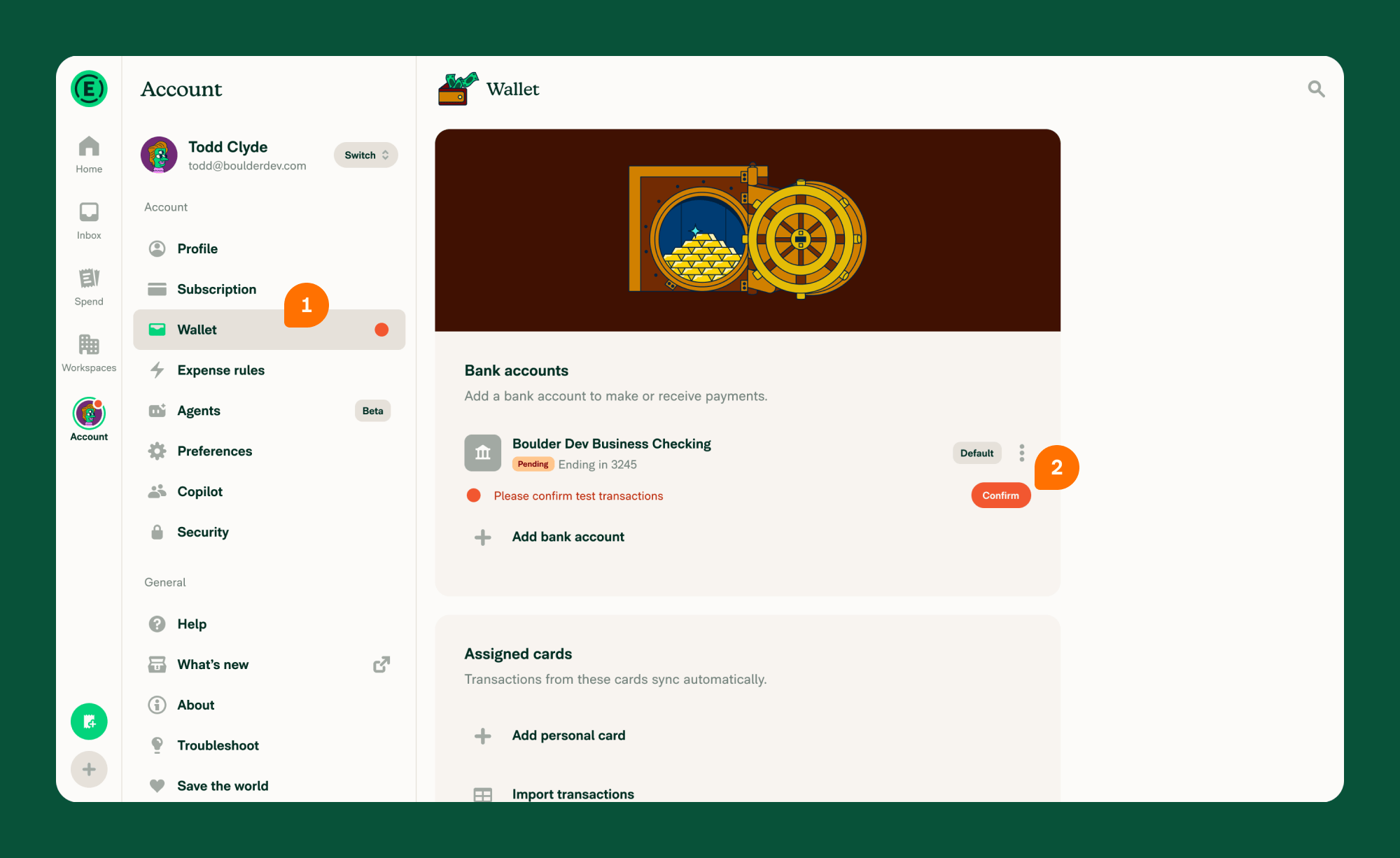
- In the navigation tabs (on the left on web, on the bottom on mobile) go to Account > Wallet.
- In the Bank accounts section, find the business bank account with the Pending badge and the message Please confirm test transactions, then click Confirm.
- If Continue setup and Start over appear instead of the validation screen, click Continue setup. Don’t click Start over, which clears the setup already completed for the account.
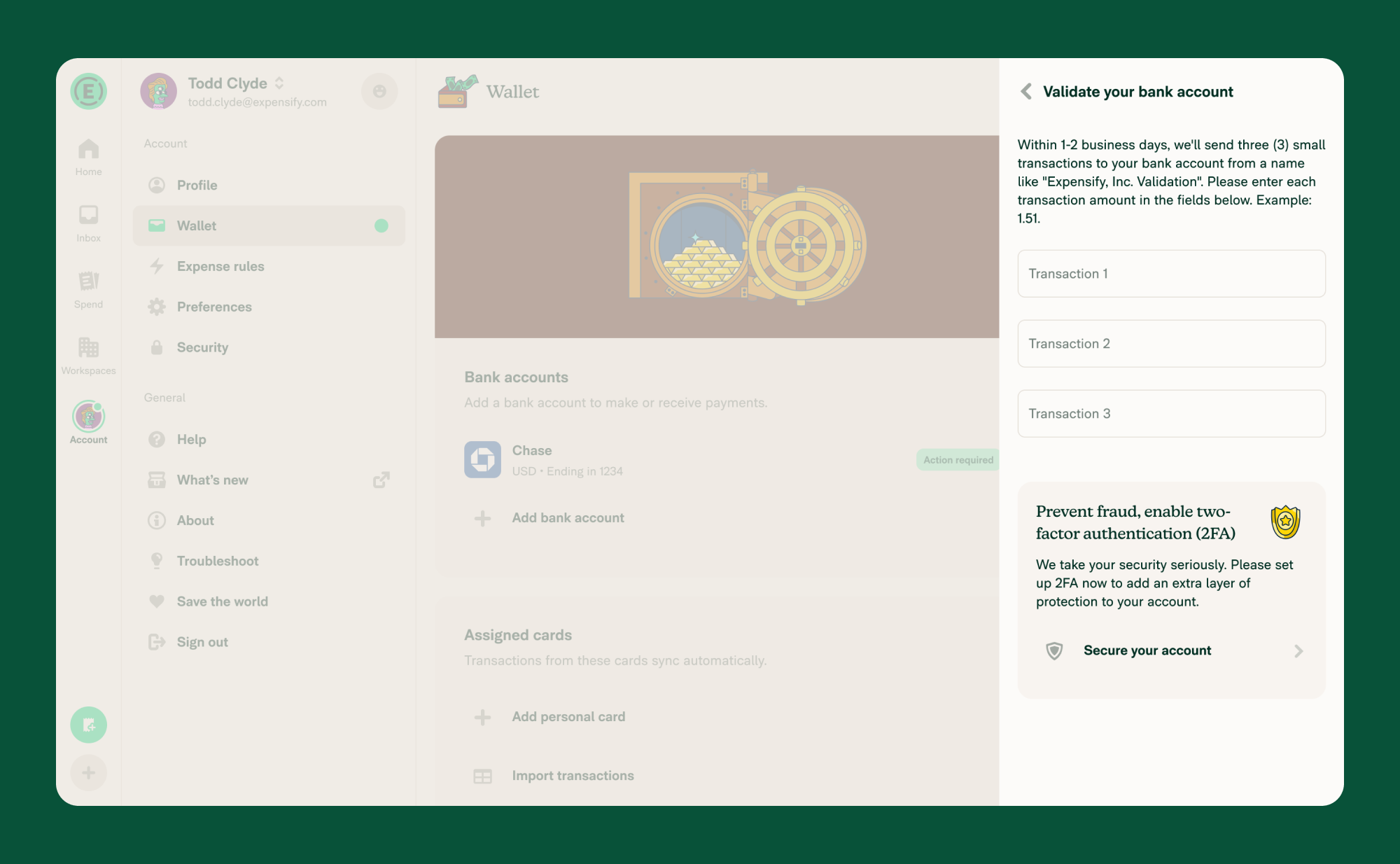
- On the Validate your bank account screen, enter each amount in Transaction 1, Transaction 2, and Transaction 3.
- Click Validate.
Once the values are confirmed, your business bank account is fully connected and ready to use.
How to validate a workspace business bank account from Workflows
If the pending bank account is connected to a workspace, you can validate it from the workspace instead of from Wallet. Opening a pending US bank account here goes straight to Validate your bank account — the Continue setup and Start over options are not shown, because the account has already been submitted.
- In the navigation tabs (on the left on web, on the bottom on mobile), click Workspaces > [Workspace name].
- Select Workflows.
- In the Payments section, click the bank account with the Pending badge.
- On the Validate your bank account screen, enter each amount in Transaction 1, Transaction 2, and Transaction 3.
- Click Validate.
This step requires an internet connection. While you are offline, the Payments section in Workflows is disabled, so use Account > Wallet instead.
What happens when you open a pending US business bank account
A pending US business bank account has already been submitted, so there is no setup left to finish. Which screen opens depends on how you get there:
- Workflows, or Account > Wallet when you are a Workspace Admin or Payments Admin on the workspace the account belongs to: Expensify takes you straight to Validate your bank account, and Continue setup and Start over are not shown.
- Account > Wallet in every other case, including a business bank account that is not connected to a workspace: Continue setup and Start over are shown first. Click Continue setup to reach the same Validate your bank account screen. Start over discards the completed setup and restarts it from the beginning, so avoid it unless you intend to redo the whole account.
Either route ends on the same validation screen, and neither asks you to re-enter company or ownership details.
This applies only to US bank accounts, because they are the accounts that receive test transactions. A non-US business bank account that is still being set up shows an Incomplete badge with a Finish action, and opening it resumes setup where you left off. Learn how to connect an international business bank account.
What to do if test transactions don’t arrive
If the test deposits don’t appear after two business days:
- Confirm that your bank account supports ACH direct debits.
- Share the following ACH details with your bank:
- ACH Company IDs: 1270239450, 4270239450, 2270239450
- ACH Originator Name: Expensify
- If still missing, contact Concierge to re-trigger the test transactions.
FAQ
How many test transactions will I receive?
Three total: two small withdrawals and one small deposit. These are temporary and used only for verification.
What is the name on the test transactions?
The test transactions will have a name like “Expensify, Inc. Validation”.
What happens if I enter the wrong amounts?
You’ll be prompted to try again. Multiple failed attempts may temporarily lock validation. See the troubleshooting section below for common causes of incorrect amounts.
Can I skip validation if the account was shared with me?
No. US bank accounts require validation by entering test transactions. Some non-US accounts may not require this step.
What if I don’t have access to the bank account?
Another member with access to the bank account must complete the validation.
Troubleshooting
Test transactions arrived but the amounts I entered are rejected
If you can see the test transactions in your bank account but validation keeps failing:
- Use posted amounts, not pending amounts. Wait until the transactions have fully posted to your account. Pending transaction amounts can sometimes differ slightly from the final posted amounts.
- Check for rounding. Enter the exact amounts shown in your bank statement, including cents. Even a one-cent difference will cause validation to fail.
- Make sure you have the right transactions. Look for transactions labeled “Expensify, Inc. Validation” or similar. If you have connected multiple bank accounts, make sure you are not confusing test transactions from a different account.
- Check the transaction order. Expensify expects two withdrawals and one deposit. Make sure you are entering each amount in the correct field.
If you have confirmed all of the above and validation still fails, contact Concierge for assistance.
The Fix or Unlock button is missing
A locked bank account shows a Locked badge with the message This account requires attention and an Unlock button. If you do not see that button:
- Check Account > Wallet in the Bank accounts section and click the locked bank account.
- If no option appears there, check Workspaces > [Workspace name] > Workflows in the Payments section.
- Also look for a time-sensitive alert on the Home screen, which may include a Fix button.
If you still cannot find the option, refer to Unlock a Business Bank Account for detailed steps, or contact Concierge.
Validation is temporarily locked after failed attempts
If you enter incorrect amounts multiple times, validation is temporarily locked to protect your account. The lock typically lasts a few hours. After the lock period ends, you can try again by going to Account > Wallet and clicking the bank account.
If you are still unable to validate after the lock period has passed, contact Concierge.
How long does validation stay open before expiring?
Test transactions and the validation window remain active for a limited time. If you do not complete validation within this period, the test transactions may expire and you will need to request new ones by contacting Concierge.
To avoid expiration, enter the test transaction amounts as soon as they appear in your bank account.
“Your bank account is almost set up” message but no test transactions after several days
If Concierge has sent the “Your bank account is almost set up!” message but you have not received the test transactions after more than two business days:
- Confirm that the bank account number connected in Expensify matches the account you are checking.
- Ask your bank if they have blocked or filtered any small ACH transactions. Provide these details:
- ACH Company IDs: 1270239450, 4270239450, 2270239450
- ACH Originator Name: Expensify
- Check whether the transactions were returned or rejected by your bank.
- If none of the above resolves the issue, contact Concierge to re-trigger the test transactions.


